

I've been waiting to write this post for a while.
When we launched Basic Memory Cloud, the editing experience was... fine. It worked. You could write notes, link them together, and let AI help you build your knowledge graph. But if I'm being honest, every time I needed to do serious editing, I found myself wishing I was in my local setup instead.
That changes today. The February 2026 release brings a proper editor to Basic Memory Cloud—one that actually feels good to use.
The New ProseKit Live Editor
We rebuilt the editor from scratch using ProseKit, which shares architectural DNA with ProseMirror. The result is three distinct modes that let you work the way you want:
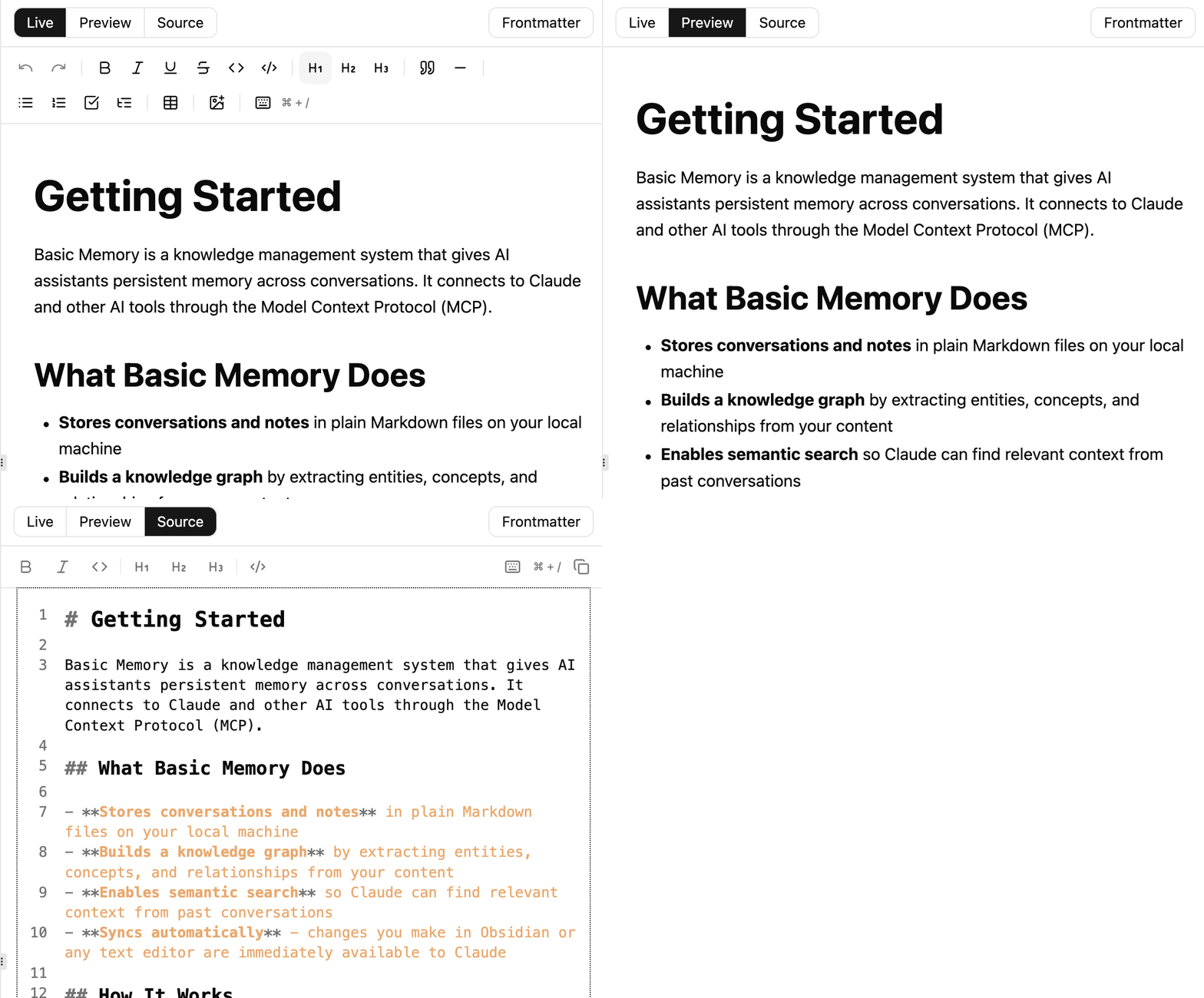
Live Mode gives you true WYSIWYG editing. When you bold something, it's bold. No markdown syntax cluttering your view, no mental translation required. For people who came to Basic Memory from tools like Notion, this is probably what you expected all along.
Preview Mode strips away the editing chrome and gives you a clean reading view. More importantly, your wikilinks become clickable—you can navigate your knowledge graph without switching contexts. I've been using this constantly when reviewing notes before AI sessions.
Source Mode is for those of us who think in markdown. Raw text, full control, no surprises. If you're coming from Obsidian or Foam, you'll feel right at home.
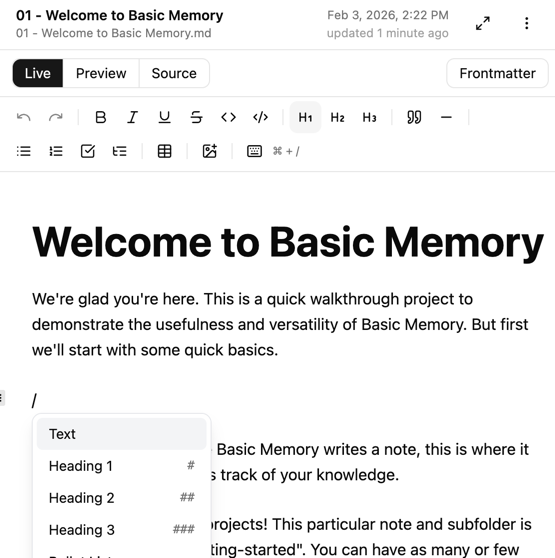
The toolbar handles the basics—bold, italic, strikethrough, inline code, links—but the real magic is the slash menu. Type / and you get quick access to headings, lists, code blocks, whatever you need. No mouse required.
Wikilink Autocomplete Actually Works
This one matters. When you type [[, the editor now suggests matching notes from your knowledge base. Start typing a title, and it narrows down the options. Hit enter, and the link is inserted.
It sounds simple, and it should be. But getting autocomplete to feel snappy when you've got thousands of notes? That took some work. We're pulling suggestions in real-time, ranked by relevance, and the whole interaction stays under 100ms even on larger knowledge bases.
For anyone building interconnected notes—which, if you're using Basic Memory, is probably everyone—this removes a ton of friction. No more switching tabs to check exact note titles. No more broken links because you misremembered a name.
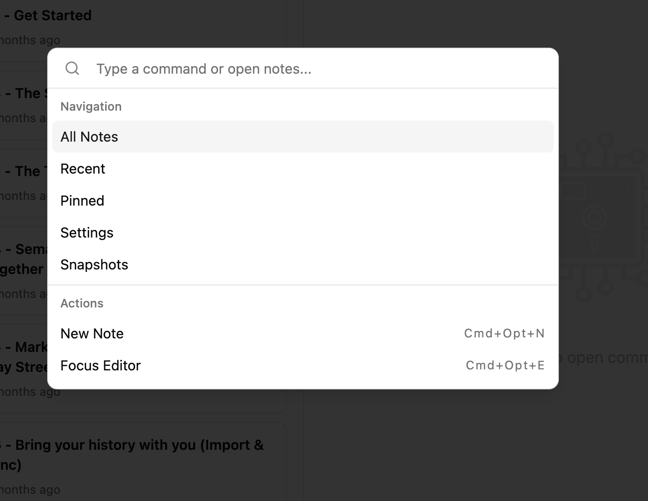
Command Palette (Cmd+K)
Every modern app has one now, and for good reason. Hit Cmd+K and you can:
- Jump to All Notes, Recent, or Pinned
- Trigger a sync
- Open Settings or Snapshots
- Execute pretty much any action without touching the mouse
We kept the implementation simple. No fancy fuzzy matching algorithms, just straightforward prefix search that gets you where you need to go. If you've used VS Code or Linear, you know the pattern.
Keyboard Shortcuts for Everything
I'm a keyboard person. Reaching for the mouse breaks my flow. So we added shortcuts for... basically everything:
- Cmd+B / Cmd+I / Cmd+E for bold, italic, and inline code
- Cmd+Alt+1/2/3 for heading levels
- Option+Shift+Up/Down to move lines around
- Cmd+Shift+M to cycle through editor modes
- Cmd+/ to see all available shortcuts (because who remembers all of these?)
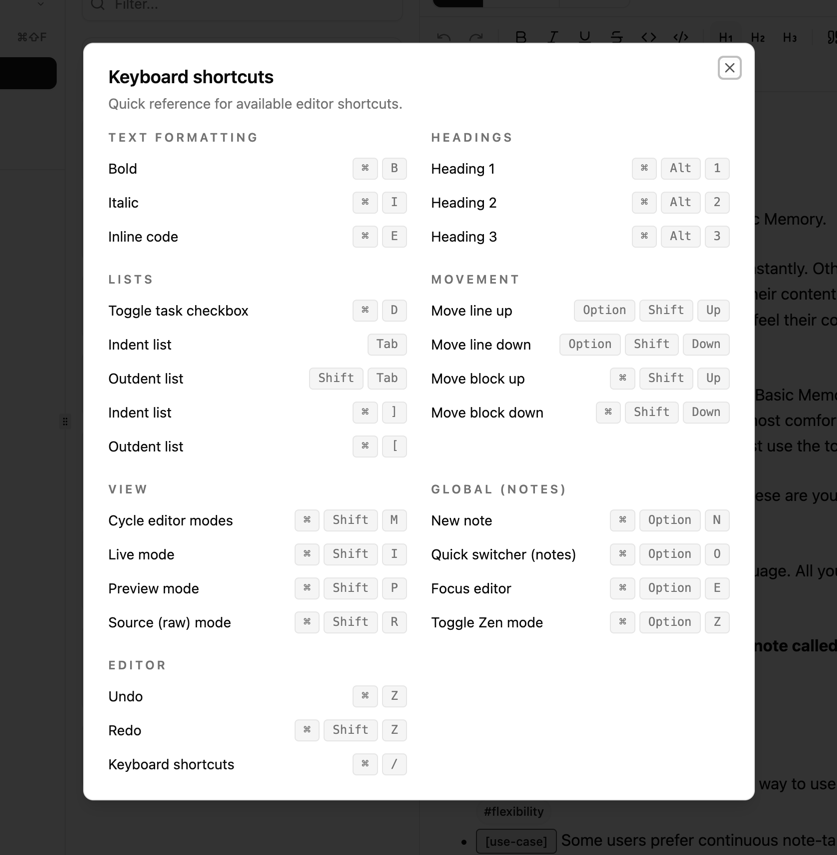
The line movement shortcuts are surprisingly useful. When you're reorganizing observations or reordering a list, being able to shuffle lines without cut-paste makes a real difference.
Better Browsing
The Observations & Relations browser now has proper filter tabs. You can view everything, or narrow down to just Notes, Observations, or Relations. Category badges give you visual context at a glance—you can immediately tell whether you're looking at a fact, a decision, or a technique.
This ties directly into how Basic Memory structures knowledge. Your notes contain observations (things you know) and relations (how things connect). The browser now makes that structure visible and navigable.
The Small Stuff That Adds Up
Pinned notes sync across devices now. Previously they were local-only, which was annoying if you work on multiple machines. Fixed.
You can move and delete folders. File management in the browser used to be limited to notes. Now you can reorganize your whole structure without dropping to the filesystem.
The frontmatter panel is actually useful. Edit your note's title, type, permalink, and tags without touching the source. This matters more than you'd think when you're cleaning up auto-generated notes from AI sessions.
Why We Built This
Here's the thing: Basic Memory exists because we believe your knowledge should live in plain text files that you control. That philosophy doesn't change just because you're using our cloud service. But "plain text you control" doesn't have to mean "mediocre editing experience."
The local Basic Memory experience—using your own editor, your own filesystem, your own backup strategy—is still first-class. Some people will always prefer that, and we're fine with it. But for people who want the convenience of cloud sync, AI integration, and access from anywhere, the editing experience should be just as good.
With this release, I think we're there. I've been using the new editor for the past few weeks, and I don't find myself reaching for my local setup anymore. That's the bar we were aiming for.
What's Next
We're not done. The editor will keep improving—better table support, more keyboard shortcuts, maybe even some vim bindings for the truly devoted. The browser needs work too; search could be faster, and we want to add more visualization options for exploring your knowledge graph.
But for now, go try it. If you're already on Basic Memory Cloud, the new editor is live. If you're not, there's never been a better time to start.
Try Basic Memory free at basicmemory.com
Further Reading: